Ready File Tools · 23 September 2026
Decide what one download should contain
Changing page order and separating a document are different tasks. If you want a summary first and the rest of the report afterward, choose Extract pages. If someone asks for each page as its own attachment, choose Split PDF. If the pages are already in separate PDFs, combine them with Merge PDFs first.
| Your goal | Tool | Result |
|---|---|---|
| One document in a new order | Extract pages | One PDF |
| A separate file for each page | Split PDF | Several PDFs, optionally in a ZIP |
| Several documents joined together | Merge PDFs | One combined PDF |
Try moving the summary to the front
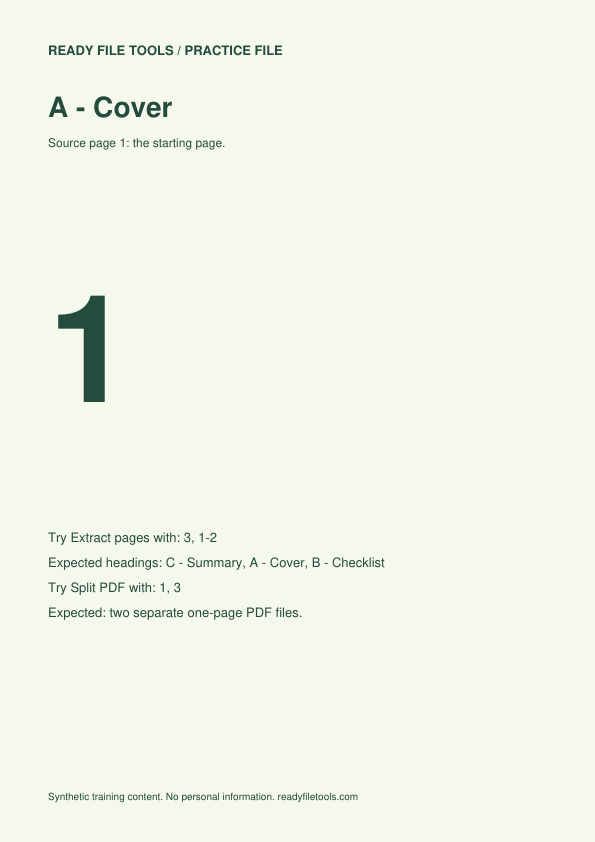
Download the original practice file below. It has three visibly labeled pages: A - Cover, B - Checklist and C - Summary. These are synthetic pages designed for this exercise, not application documents to submit anywhere.
- Open Extract pages and choose the original practice PDF.
- Enter 3, 1-2 in Pages. This means take page 3, then pages 1 through 2. Arabic input ٣، ١-٢ works too.
- Create the result and download it before leaving the page.
- Open the new PDF. The headings should be C - Summary, A - Cover and B - Checklist, in that order.
The downloadable result below is a reference for this exact task. Compare headings and page count rather than expecting byte-for-byte identical files: PDF producers can write different metadata or identifiers while retaining the same pages.
Try splitting instead
Return to the original three-page file and open Split PDF. Enter 1, 3. You should receive two one-page PDFs, not one two-page file. The output filenames include the original positions 001 and 003. Download each file, or use Download all as ZIP and unpack the archive before uploading to a service that accepts only PDFs.
Page numbers refer to file positions
A cover is page 1 even if it has no printed number. A printed Roman numeral or an old footer does not change the selection position. Count from the first visible page in your viewer. Repeated numbers are included once: 3, 1, 3 produces two pages. Backward ranges such as 3-1 are rejected; write 3, 2, 1 when you want reverse order.
Before you send the result
Check for missing pages, inspect the first and last page, and make sure every required attachment is included. These tools can flatten supported form fields and may not carry over bookmarks or all links. Keep the editable source if you need to revise a form later. Do not assume a digital signature remains valid after changing the document.
How this example was checked
On 23 September 2026, we ran the site's PDF processing code locally with the practice file. A separate PDF reader verified the three output headings in C, A, B order, and verified that splitting pages 1 and 3 produced two one-page files. Arabic and Persian digits and comma variants were checked as inputs. This checks the processing behavior; it is not a claim that every mobile browser or every PDF has been tested.
Practice and comparison files