Prepare the pages you need
Suppose you have a PDF cover and two scanned photos to send as one attachment. The desired order is cover → supporting page A → supporting page B. Ready File Tools handles this in two stages: convert the images to a PDF, then merge that PDF with the cover.
For Word, Excel or another editable document, first export a PDF from the application that opens it. The merge tool takes PDFs; Photos to PDF takes JPG, PNG and WebP images. Rename your local files clearly so you can select the right versions.
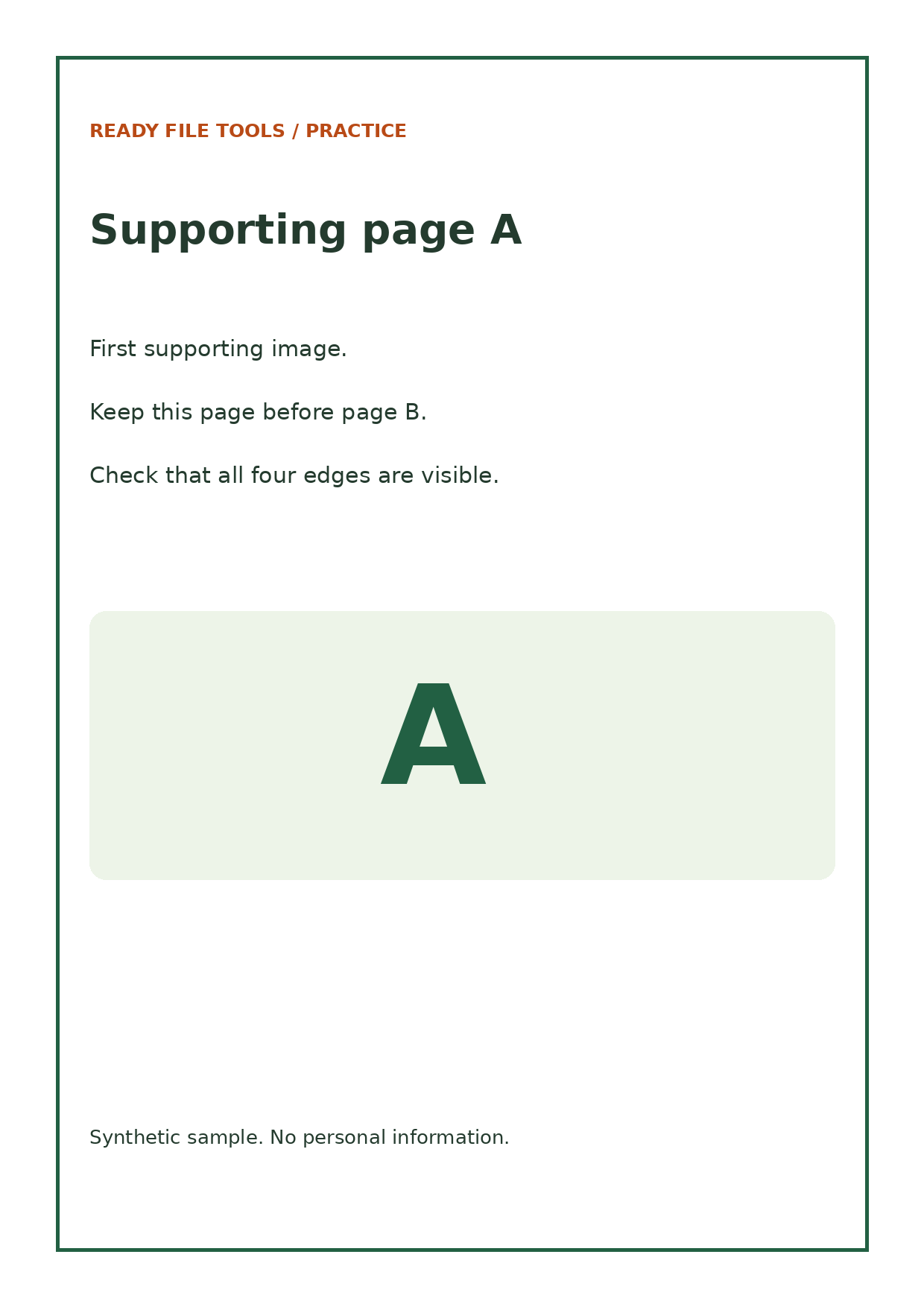
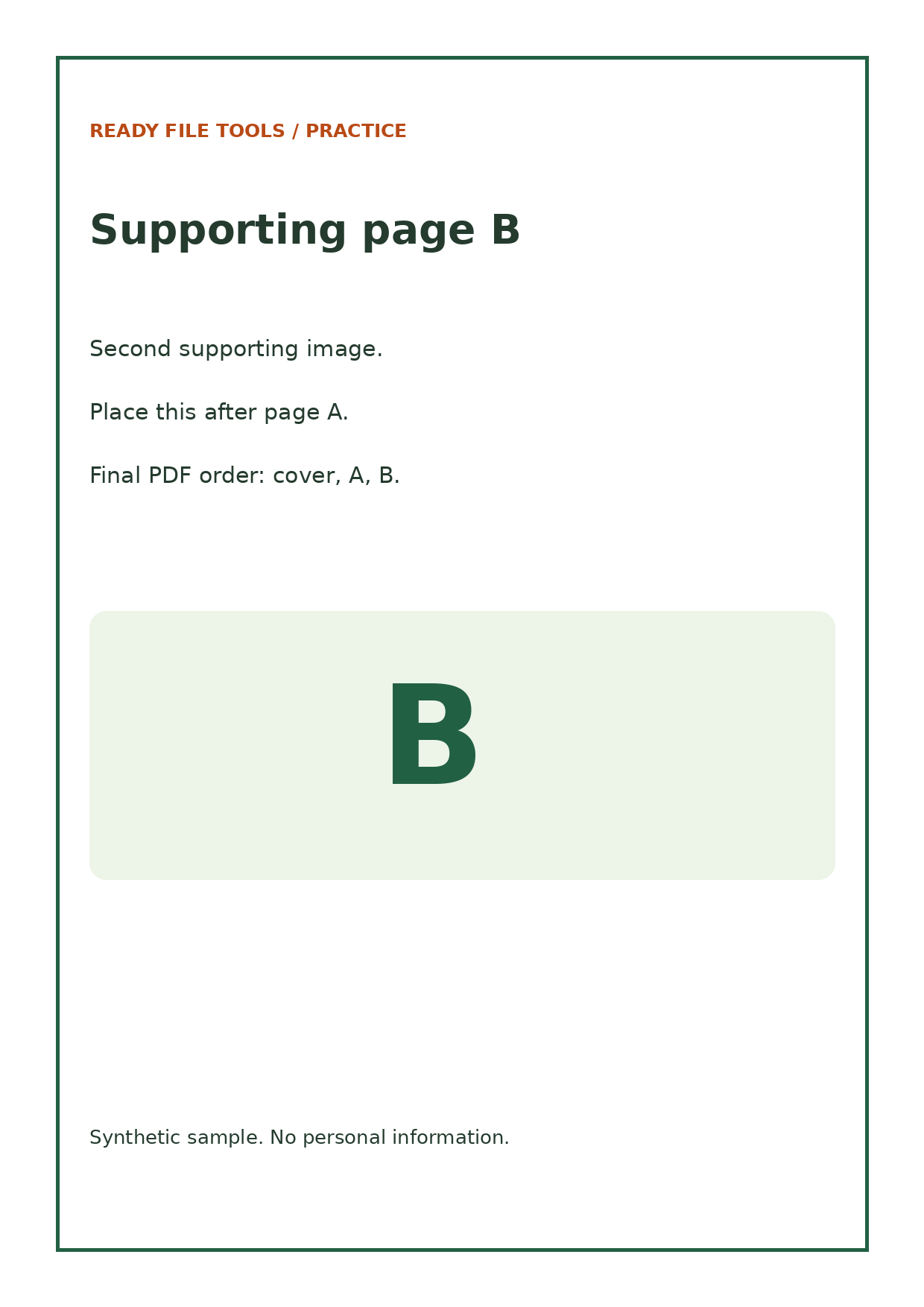
Convert the photos to PDF
- Add the two images. Open Photos to PDF and choose the image files. Each image becomes one page. The tool supports up to 20 images.
- Check the thumbnails. Use “Move earlier” and “Move later” to put A before B. Use “Rotate” if a page is sideways. Check the thumbnail numbers rather than relying on the order in the file picker.
- Choose page size. Choose A4 for this example. US Letter and “Fit the image” are also available. A4 centers the image with margins; images with different proportions may leave extra white space.
- Create and save the PDF. For the practice files, use a maximum PDF size of 25,000 KB so a tight limit does not drive additional quality reduction. Select “Create PDF,” review the result and download it. Rename your copy photos-combined.pdf if that helps you find it.
The maximum size is a target, not a guarantee. If the tool says the target was not met, the output is still above it. A smaller target can soften text in photographed documents. Also, the two-page photos PDF is an intermediate file: it does not yet include your cover.
Merge with the PDF cover
- Open Merge PDFs. Choose the original cover PDF and the photos PDF you just downloaded. This step needs two PDFs, not the original PNG images.
- Put the cover first. Use the file-order controls to move the cover above the photos PDF. Pages within each input PDF keep their order. If you need to move one page between others, use the editor’s page organization tools afterwards.
- Create and download. Select “Create result” and download the merged PDF. The merge tool accepts up to 20 PDFs, 25 MB each, 50 MB combined and 50 pages in total.
Download the result from one tool and select it in the next tool. Files do not transfer automatically between these pages. Tool links in this guide open a new tab so you can keep the instructions available.
Compare your finished bundle
Our sample produced a two-page photos PDF and a three-page merged PDF. We checked the exported pages: the cover comes first, A is second, and B is third. Open your result and confirm that order, then zoom in to check the edges and smaller writing.
If the finished attachment is too large, compress the merged result once and review it again. Keep a separate original if you need editable form fields: merging can flatten supported form fields into fixed page content.
How this example was checked
The downloadable examples were checked on 15 September 2026. These are local processing tests with the site’s PDF code and a native canvas adapter, not a timed browser benchmark. Browser image encoders and device limits can change file sizes.
The photo conversion used the current Photos to PDF function with A4 pages, the 25,000 KB target and unrotated PNG inputs. The saved PDFs were merged with the site’s merge engine, then rendered to verify cover, A, B order.