Ready File Tools · 24 September 2026
Start by deciding which pages belong in the numbering sequence
A cover page often belongs to the document but not to the visible numbering. That creates two separate ideas: the physical page position inside the PDF and the number you want readers to see. In a three-page file, the cover is still PDF page 1 even when the first visible label should be 1 on PDF page 2.
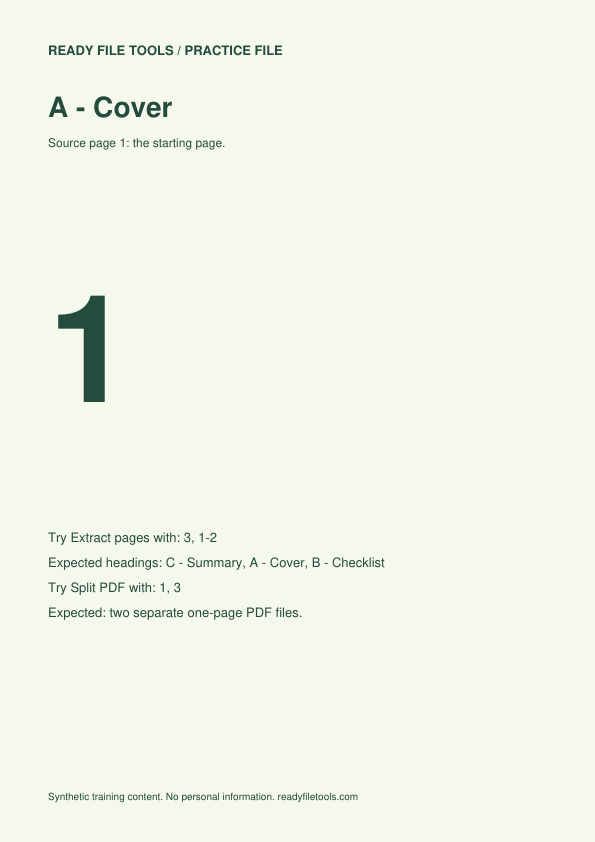
For this exercise, download the three-page practice file below. It contains A - Cover, B - Checklist and C - Summary. The goal is to leave A unnumbered, place 1 on B and 2 on C.
| PDF position | Page heading | Visible number to add |
|---|---|---|
| 1 | A - Cover | None |
| 2 | B - Checklist | 1 |
| 3 | C - Summary | 2 |
Number only pages 2–3
- Open Add Page Numbers and choose the practice PDF.
- In the Pages field, enter 2-3. The cover remains outside the numbering selection.
- Set the starting number to 1.
- Choose a top or bottom position after checking where the document has clear space.
- Create the result, download it, then open the downloaded copy rather than relying only on the browser preview.
If you use a total-page style, remember that the displayed total follows the new numbering sequence. In this example the numbered body has two pages, even though the complete PDF has three physical pages.
Choose placement by looking at the document, not by habit
Bottom-center is familiar, but it is not automatically safe. A footer, signature line, barcode or existing printed number can occupy the same area. Top-center can be clearer on forms with busy footers. Whichever position you choose, inspect every numbered page at a readable zoom.
The tool adds a new visible label; it does not detect or erase numbers that are already printed on the page. If the source already has page numbers, adding another sequence can confuse the recipient. Use the original source application when existing numbering must be removed or rebuilt.
Reorder first when the page sequence itself is wrong
Numbering follows the pages you select; it does not move physical pages. If the summary should come before the checklist, reorder or extract the pages first, download that new PDF, and only then add numbers. This keeps the visible sequence aligned with the final reading order.
Before you send the numbered PDF
- Confirm that the cover has no new number.
- Check that the first numbered page starts at the value you intended.
- Inspect the top and bottom edges for overlapping text.
- Confirm that the last page shows the expected final number.
- If the document contains forms or signatures, keep an untouched original in case you need to return to it.
Visible page numbers are a convenience for readers; they do not change the internal PDF page positions used by other tools. A recipient may still refer to “PDF page 3” even when the printed label on that page is “2.”
Practice file